ALSTAR Home

Establishing CAS Password

Instructions on establishing and/or changing your CERIS CAS password

- PLEASE NOTE –
If you already have a CERIS CAS user account you DO NOT need a separate Login for each system

  1. Go to the CERIS system you are wanting to log into and establish your login credentials
  2. Select “Login”
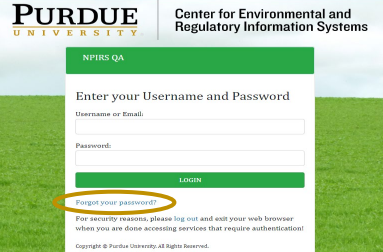
  3. Select “Forgot your password” CAS Forgot Link Screenshot
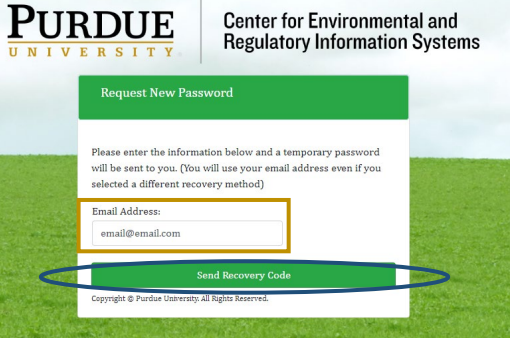
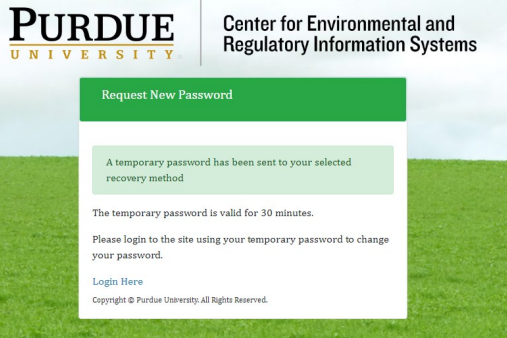
  4. Enter email associated with the user account and select “Send Recovery Code” CAS Send Recovery Code Screenshot You should get the following screen: CAS Email Sent Screenshot
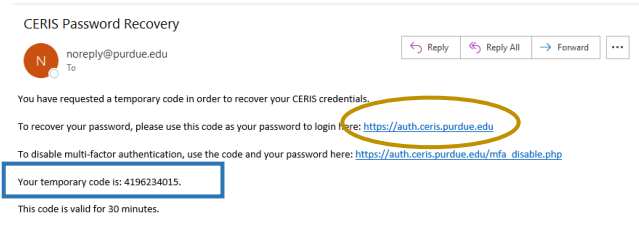
  5. Check your email for the recovery code
    • Click on the TOP link provided in the email CAS Recovery Email Screenshot
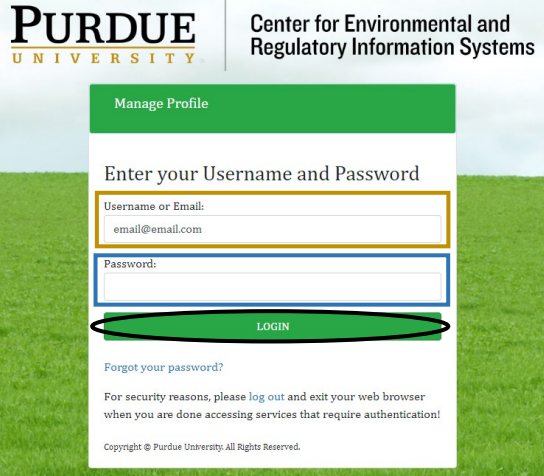
  6. Once the link has been selected the following screen should appear:
    • Enter email associated with the user account
    • Enter the temporary code provided in the email in the password space
      • PLEASE NOTE- The code is only valid for 30 minutes.
    • Select Login CAS Login Page Screenshot
  7. Identify your user account password
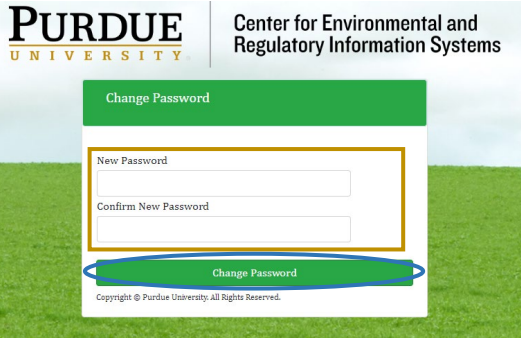
    • In the spaces provided enter your selected password
    • Select Change Password CAS New Password Screenshot
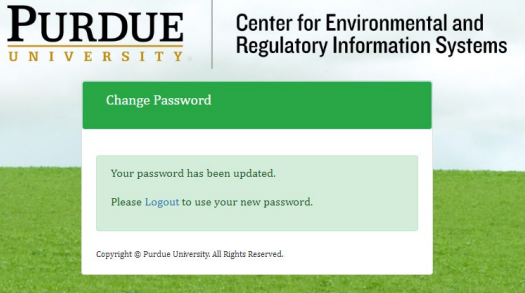
  8. Once the following screen appears your password for the CAS system has been set
    • Select the Logout link
    • Return to the initial CERIS system you are logging into and use your Login Credentials to gain access to the respective system(s). CAS Successful Password Change Screenshot